Introduction to DubPlanner
What DubPlanner is for
Section titled “What DubPlanner is for”Linear is very good at telling you what needs doing. It is less good at telling you when it will be done, and by whom — the question every planning meeting actually turns on.
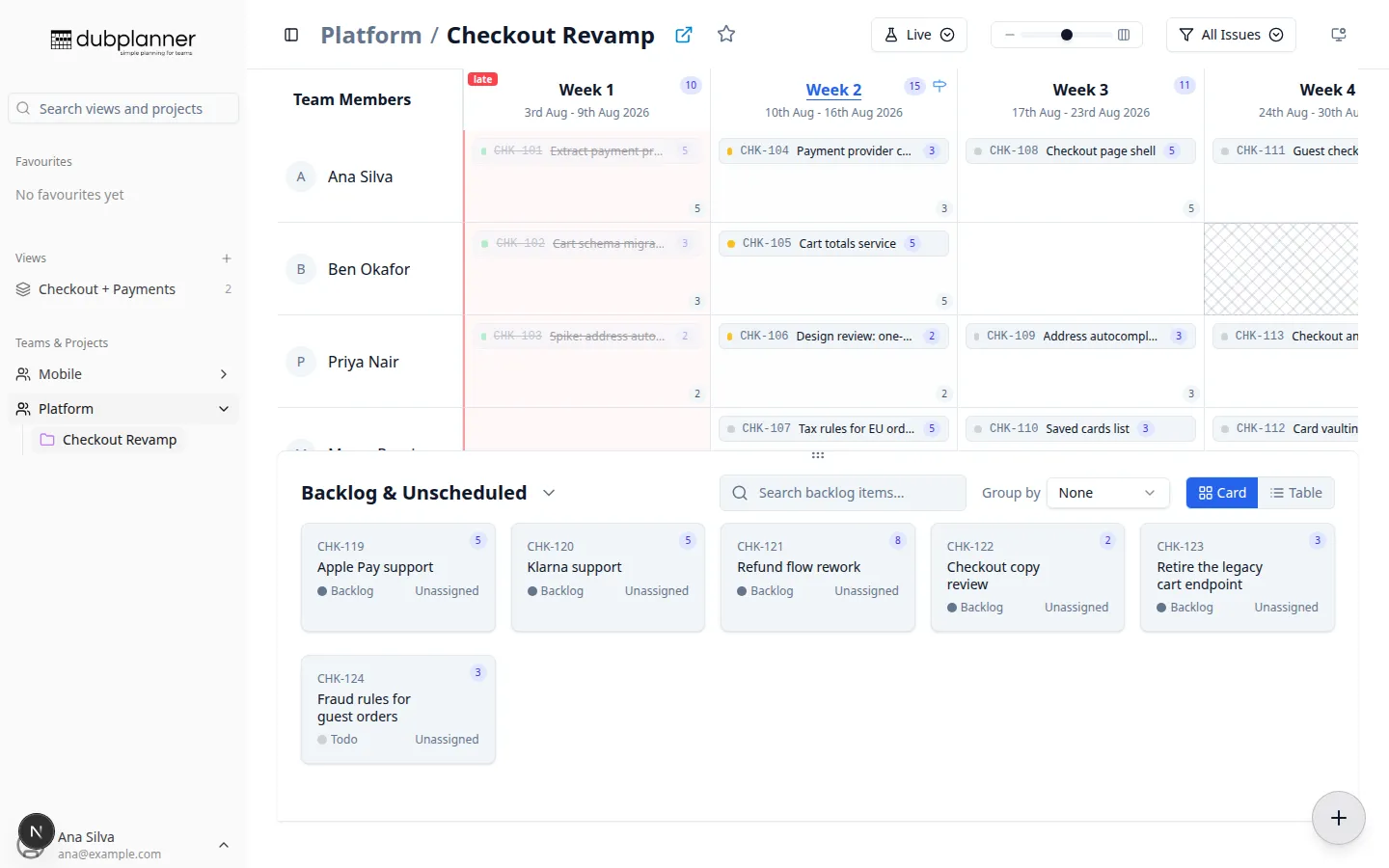
DubPlanner answers that question with one screen: a grid where each row is a person and each column is a week. An issue sits in the cell where someone is expected to work on it. If the grid looks overloaded, the plan is overloaded.
The core ideas
Section titled “The core ideas”Your issue tracker stays the source of truth
Section titled “Your issue tracker stays the source of truth”DubPlanner does not keep a private copy of your work. It reads issues from Linear, and when you
move one, it writes the change back — the assignee changes, and the week is recorded as a
Week N label on the issue. Someone who never opens DubPlanner still sees the plan in Linear.
That is why the first-run wizard sets up week labels: they are the storage format for the plan.
A week is a column, and a column is a real week
Section titled “A week is a column, and a column is a real week”Columns are numbered from your project’s start date — week 1 is the week the project starts — and each column header also shows the actual calendar dates it covers. In a Custom View spanning several projects, columns are aligned to real calendar weeks, so a column means the same point in time for every project on the board.
Statuses are your statuses
Section titled “Statuses are your statuses”Ticket status, colour and “is this finished?” all come from your project’s real Linear workflow states — your own Todo, In Progress, In Review, Done and any custom states — not from a generic list DubPlanner invented. Renaming a state in Linear changes what DubPlanner shows, not how it behaves.
Nothing is hidden by accident
Section titled “Nothing is hidden by accident”Work that has no week yet, or nobody assigned, is not lost: it sits in the Backlog & Unscheduled area under the grid, where you can group it, search it and drag it onto the plan.
The pieces you will meet
Section titled “The pieces you will meet”| Concept | What it is |
|---|---|
| Project | A Linear project. Its start date defines week 1 of the grid. |
| Team member | A row in the grid. Comes from the project’s members in Linear. |
| Week | A column. Stored on each issue as a Week N label. |
| Milestone | A Linear project milestone. Used to group and focus work. |
| Backlog | Everything with no week — shown under the grid. |
| Availability | Vacations and project absences that shade the grid. |
| What-If | A named scratch copy of the plan that is not written to Linear until you apply it. |
| Custom View | Several projects on one board, aligned to calendar weeks. |
How it fits a normal week
Section titled “How it fits a normal week”- Look — open the project and read the current week’s column.
- Adjust — drag what has slipped, reassign what is blocked, book the vacation someone just told you about.
- Experiment — if the change is big, do it in a What-If first and apply it once the team agrees.
- Forget about it — everything you did is already in Linear.
Next steps
Section titled “Next steps”Follow the Quick start to get from a fresh sign-in to a planned week.