Search & Navigation
Sidebar search
Section titled “Sidebar search”The search box at the top of the sidebar finds projects across every team and your saved views, in one ranked list. No expanding teams to hunt for a project.
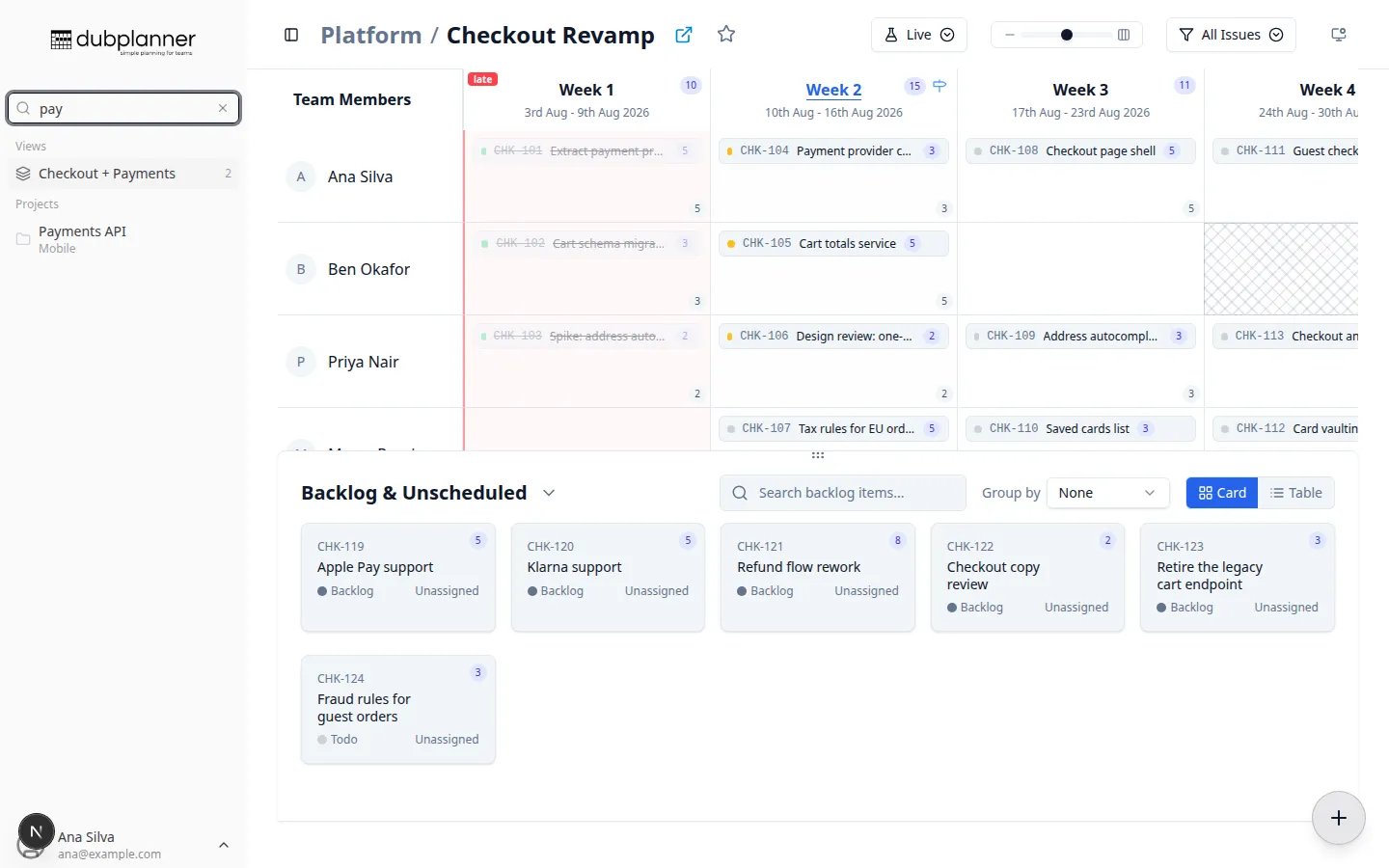
- Type a project name — or a team name, which surfaces that team’s projects. This is the quickest way to tell apart two projects with the same name in different teams.
- Arrow up and down through the results and press Enter to go there.
- If one team cannot be reached, the rest of the results still appear, with a notice about the one that failed.
The Custom View project picker ranks the same way, so finding a project feels the same wherever you do it.
Favourites
Section titled “Favourites”Star a project with the ☆ in the header and it appears under Favourites at the top of the sidebar. Favourites show up immediately, without waiting for the whole team to load, and follow you between sessions.
The sidebar
Section titled “The sidebar”- Views — your Custom Views, each with a ⋯ menu to edit or delete
- Teams & Projects — teams sorted A–Z, expanding to their projects. Project folder icons are coloured consistently per project, so you learn them by sight.
- Resize — drag the sidebar’s right edge; the width is saved across reloads
- Collapse — the toggle in the header. Collapsed, the sidebar shows just the logo and your avatar rather than a column of unlabelled icons.
Long team and project names are truncated cleanly instead of forcing a horizontal scrollbar.
Picking up where you left off
Section titled “Picking up where you left off”Opening DubPlanner takes you back to the last project you were working on, rather than an empty selection screen.
The user menu
Section titled “The user menu”Your avatar at the bottom of the sidebar opens:
- Manage Availability — your own vacations and absences
- Organization Settings — members, roles and labels, for workspace admins
- Sign out