Scheduling Work
Everything on this page writes straight through to Linear. The screen updates immediately and the change syncs in the background.
Creating issues
Section titled “Creating issues”There are four ways in, and they all open the same dialog:
- Press
Canywhere on the planner - The ✚ floating button, bottom right — the same thing, for touch devices
- Right-click a grid cell → Create Issue — prefilled with that cell’s person and week
- Double-click a grid cell — the same, one gesture faster
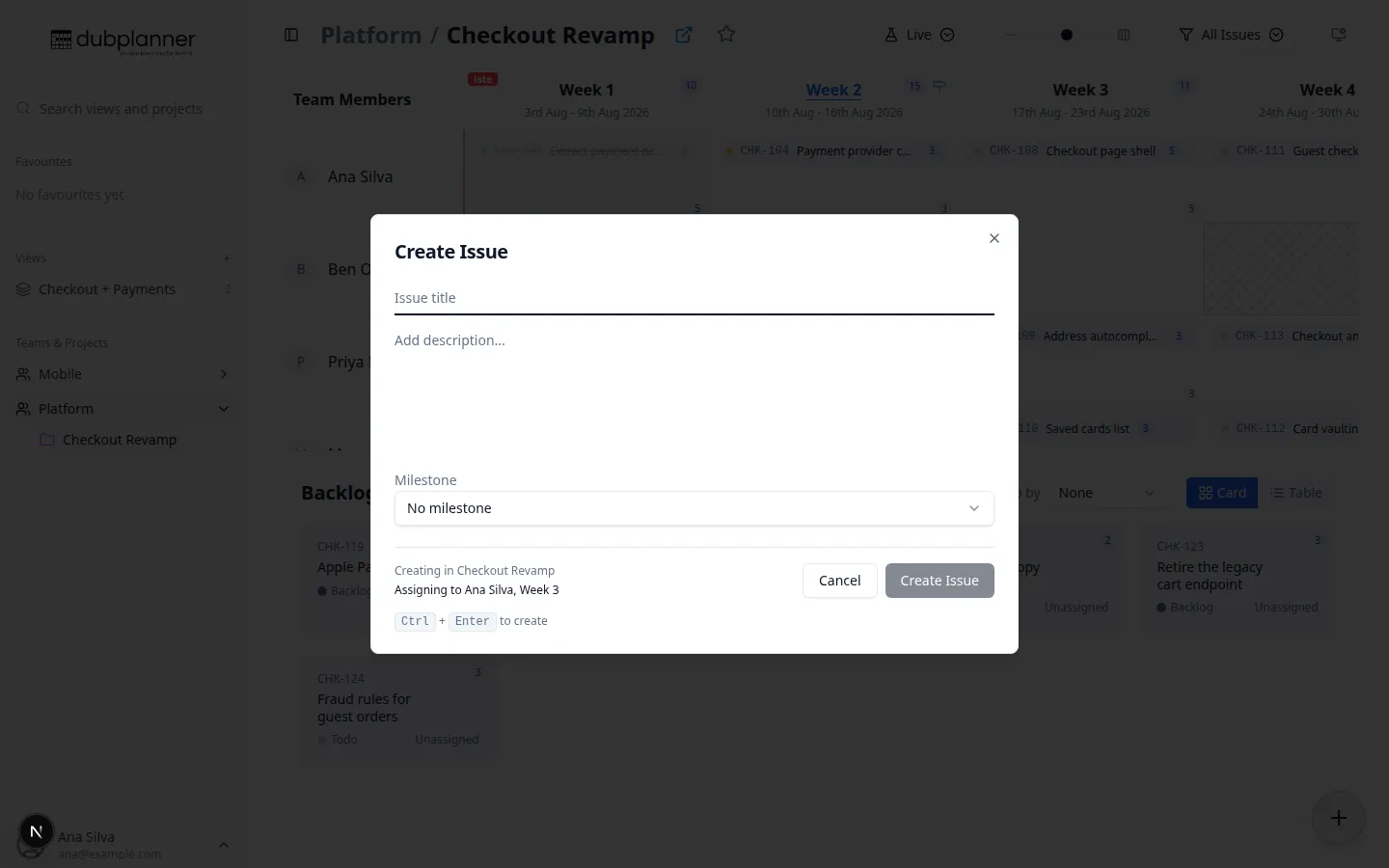
The dialog takes a title, description, assignee, week, estimate and milestone, so new work starts in the right place rather than needing a second edit.
From an existing ticket
Section titled “From an existing ticket”Right-click a ticket → Create:
- Issue — a new issue alongside it
- Sub-Issue — a child of this issue
- Dependent Issue — a new issue linked as dependent on this one
Moving work
Section titled “Moving work”Drag and drop
Section titled “Drag and drop”Drag a ticket to a different cell to change who is doing it, when, or both. Drop targets:
| Drop on | Result |
|---|---|
| A grid cell | Assigned to that person, in that week |
| The Unassigned row | Keeps the week, clears the assignee |
| The Backlog area | Clears both, and returns the issue to a backlog state |
Dragging near the left or right edge auto-scrolls through the weeks, faster the closer you get, so moving work two months out is one gesture.
What a move writes to Linear
Section titled “What a move writes to Linear”- The assignee changes.
- The
Week Nlabel is replaced with the new week’s label. - If the issue was in a backlog state, it advances to your project’s first unstarted state. Work already in progress or done keeps its status.
Changing an issue
Section titled “Changing an issue”Right-click a ticket for the full menu.
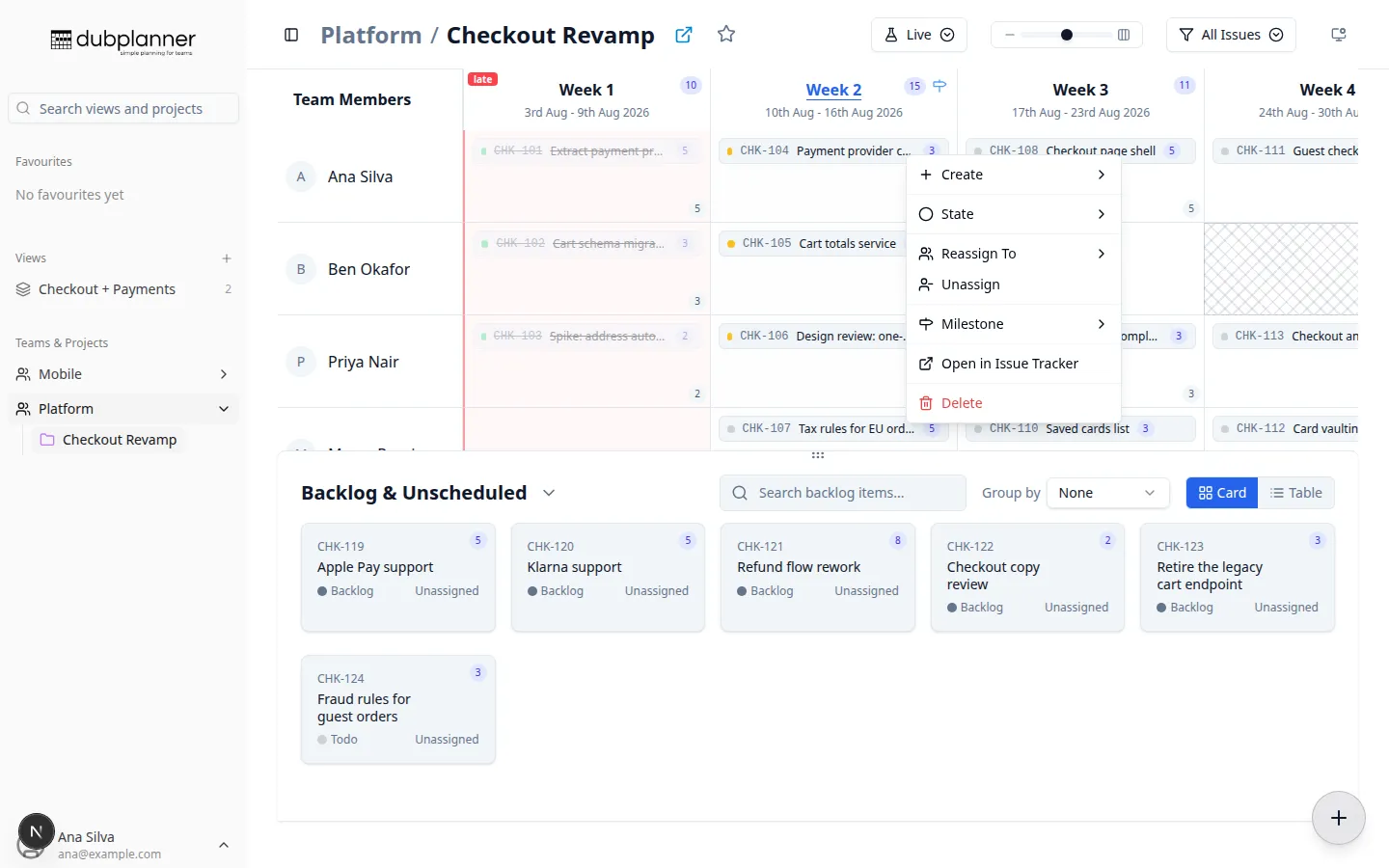
| Item | What it does |
|---|---|
| Create | Issue, Sub-Issue or Dependent Issue |
| State | Set the workflow state — your project’s real Linear states, current one checked |
| Reassign To | Pick another team member |
| Unassign | Clear the assignee, keep the week |
| Milestone | Set or clear the milestone, current one checked |
| Open in Linear | Open the issue in your tracker, in a new tab |
| Delete | Delete the issue, after confirming |
Status, assignee and week can also be edited from the ticket detail panel, which stages your changes behind a Save button.
Trying a plan before committing to it
Section titled “Trying a plan before committing to it”If you are about to move twenty tickets to see whether a date is achievable, do it in a What-If scenario instead: the same gestures, but nothing reaches Linear until you apply it.