Custom Views
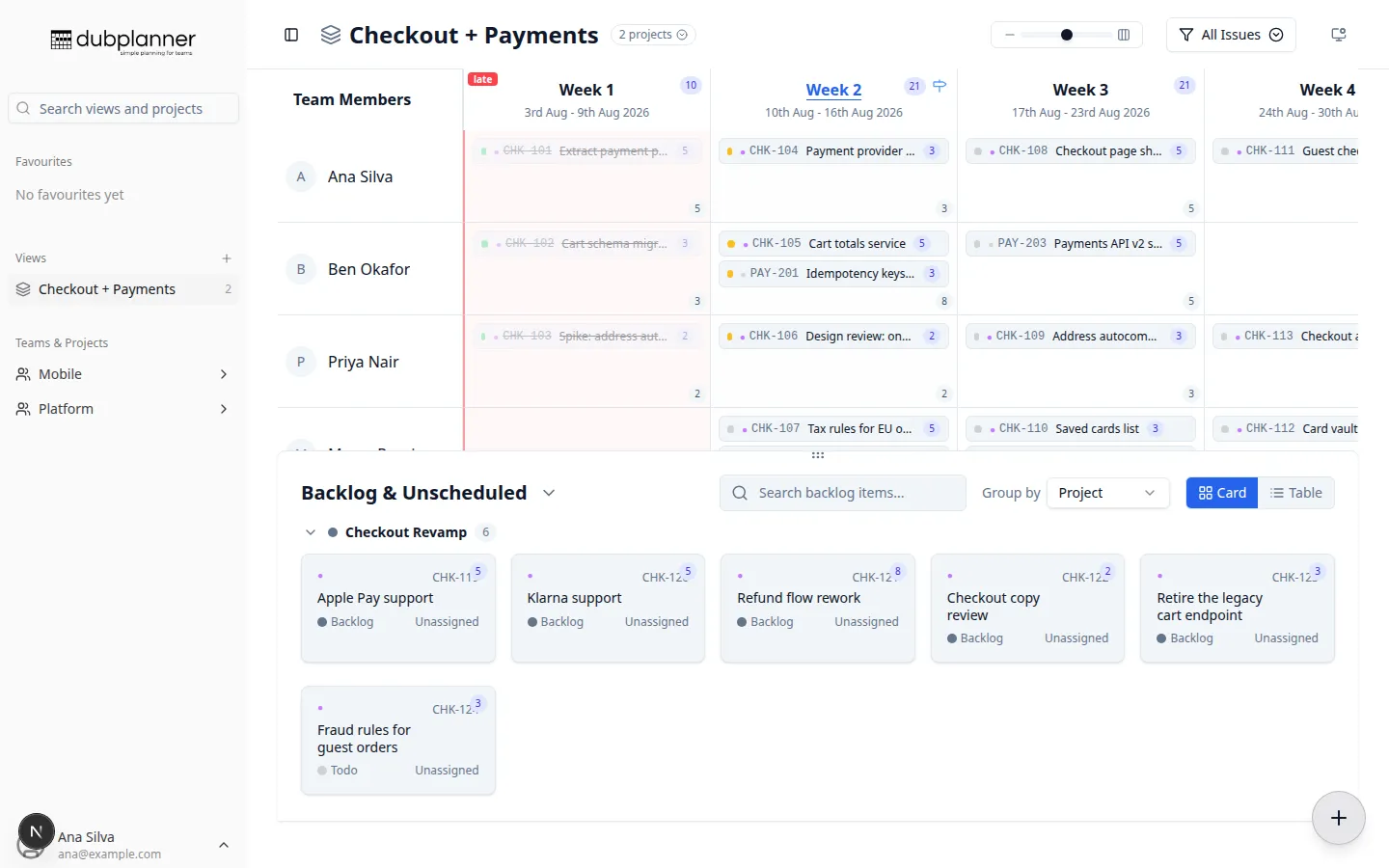
Most teams do not work on one project. A Custom View puts any set of projects on a single board, so you can see what a person’s week actually looks like rather than what one project thinks it looks like.
Creating a view
Section titled “Creating a view”In the sidebar, the Views group has a ✚ button. Give the view a name, then choose how it picks up projects:
- Pick projects — choose them yourself, from any team. Filter by project or team name; the picker puts prefix matches at the top.
- From initiative — point the view at a Linear initiative and it follows that initiative’s projects, including sub-initiatives. Projects added to the initiative later appear automatically, without you editing the view. These views are named after the initiative they follow.
Edit or delete a view from the ⋯ menu next to it in the sidebar. Deleting asks first, and is explicit that only the view goes — your projects, tickets and milestones are untouched.
Weeks line up
Section titled “Weeks line up”Projects rarely start on the same day. A view anchors on the earliest start date among its projects and shifts every other project in by its own offset, so a column means the same point in time for every project on the board. A project that started four weeks later has its week 1 in the view’s column 5.
The ticket detail panel shows the view’s column for a ticket, which is why it can differ from the week number stored on the issue in Linear.
The view opens scrolled to the current week, the same as a single project.
Working in a view
Section titled “Working in a view”Everything the single-project planner does, a view does:
- drag tickets between weeks and people
- change status, assignee and milestone
- create issues — you are asked which project the issue belongs to, and the view remembers your last choice
- group the backlog by project
Each card carries a colour dot matching its project in the sidebar, and the header shows how many projects are in the view, with a list that links through to each project’s own planner.
Collaboration in a view
Section titled “Collaboration in a view”Live updates and presence avatars work across every project in the view — and they are visible to people working in those projects directly, too. Someone planning a single project sees your changes even though you made them from a view.
When a view says no
Section titled “When a view says no”Two cases are deliberately loud rather than quiet:
- Dropping a ticket before its own project starts is refused with an explanation, instead of quietly landing it somewhere else. A project has no week 0.
- A project that cannot be loaded is named in a banner, so a view never silently shows you less work than it should.
Related pages
Section titled “Related pages”- Search & navigation — finding views and projects
- The planner grid