Milestones
Milestones come from your Linear project. DubPlanner shows them in the order you arranged them in Linear — everywhere they appear — and uses them to answer the question a grid alone cannot: which of this work belongs to the thing we promised?
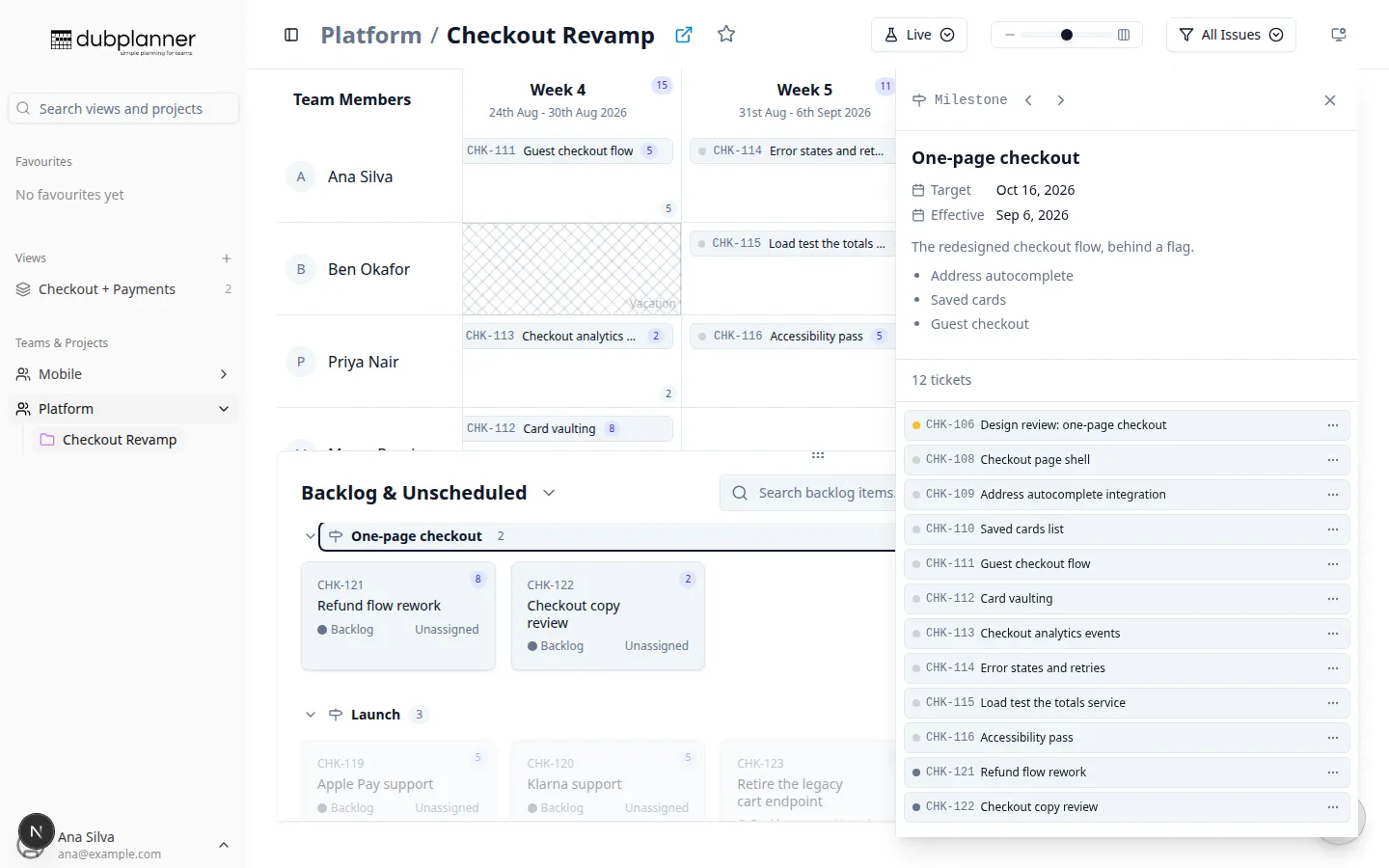
Focusing a milestone
Section titled “Focusing a milestone”Click a milestone — on its marker in a week header, or on its group header when the backlog is grouped by milestone — to open it in a side panel. Everything not in that milestone dims, so you can see the shape of one deliverable across the weeks.
The panel shows the milestone’s name, target date, description (rendered as Markdown, so lists and links look right) and its tickets.
Stepping between milestones
Section titled “Stepping between milestones”Back and forward arrows in the panel cycle through the project’s milestones, including a No Milestone view that highlights work not yet assigned to any milestone — usually the fastest way to find the gaps in a plan. When the backlog is grouped by milestone, it scrolls to keep the focused milestone in view as you step.
Close the panel with ✕ or Esc.
Setting a ticket’s milestone
Section titled “Setting a ticket’s milestone”- From the ticket menu — right-click a ticket → Milestone, and pick one. The current milestone is checked, and No milestone removes it.
- From the ticket detail panel — the Milestone field.
- When creating an issue — the new-issue dialog has a milestone picker, so work starts in the right place.
Changes are written to Linear like any other edit.
Milestones in What-If
Section titled “Milestones in What-If”What-If mode can re-milestone work as freely as it moves it. The review panel lists each change as a clear from → to before anything reaches Linear.
Related pages
Section titled “Related pages”- The backlog — grouping by milestone
- Ticket details — the milestone field