What-If Mode
Re-planning is the part of planning nobody wants to do live. What-If mode gives you a named scratch copy of the plan: move anything you like, show it to the team, and apply it to Linear only when everyone agrees — or delete it and nothing ever happened.
Entering and leaving
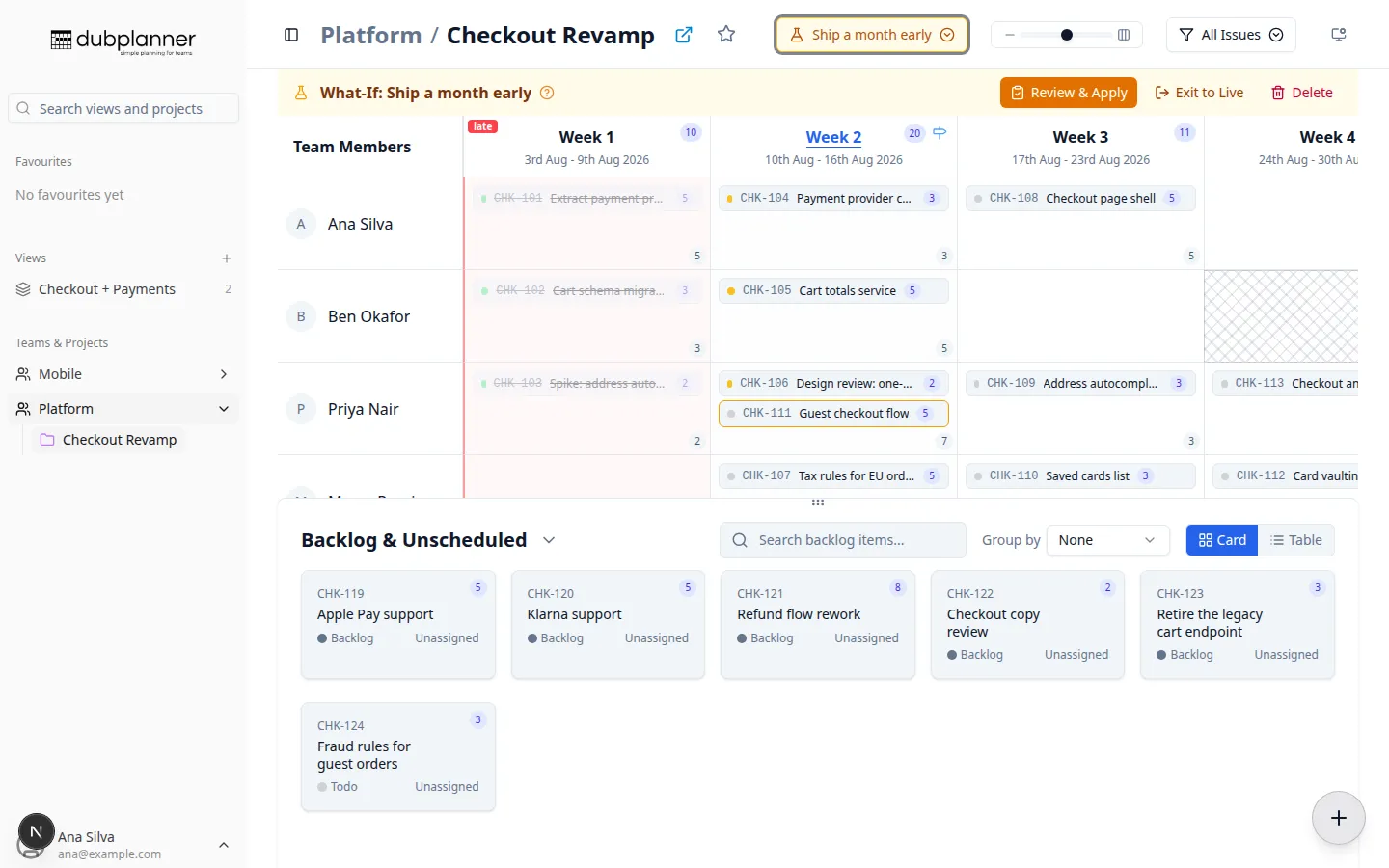
Section titled “Entering and leaving”The planning mode switcher in the header shows Live by default. Open it to:
- pick an existing What-If for this project, or
- Create What-If… and name it (for example “Ship a month early”).
While a scenario is active, an amber banner runs across the top: the scenario’s name, Review & Apply, Exit to Live, and Delete. Any ticket your scenario has changed is outlined, so it is always obvious what differs from the real plan.
What you can change
Section titled “What you can change”- Move tickets between weeks and people
- Change milestones
- Send work to the backlog, or unassign it
- Add placeholder tickets for work that does not exist yet — double-click a cell, right-click →
Create Issue, or press
C
Placeholders are sketches. They exist only inside the scenario and only become real Linear issues if you apply it.
None of this touches Linear. Edits are held in the scenario, and the live plan is exactly where you left it.
Reviewing and applying
Section titled “Reviewing and applying”Review & Apply opens a summary of everything the scenario changes — moved, re-milestoned, hidden, and new tickets — with each change spelled out as from → to.
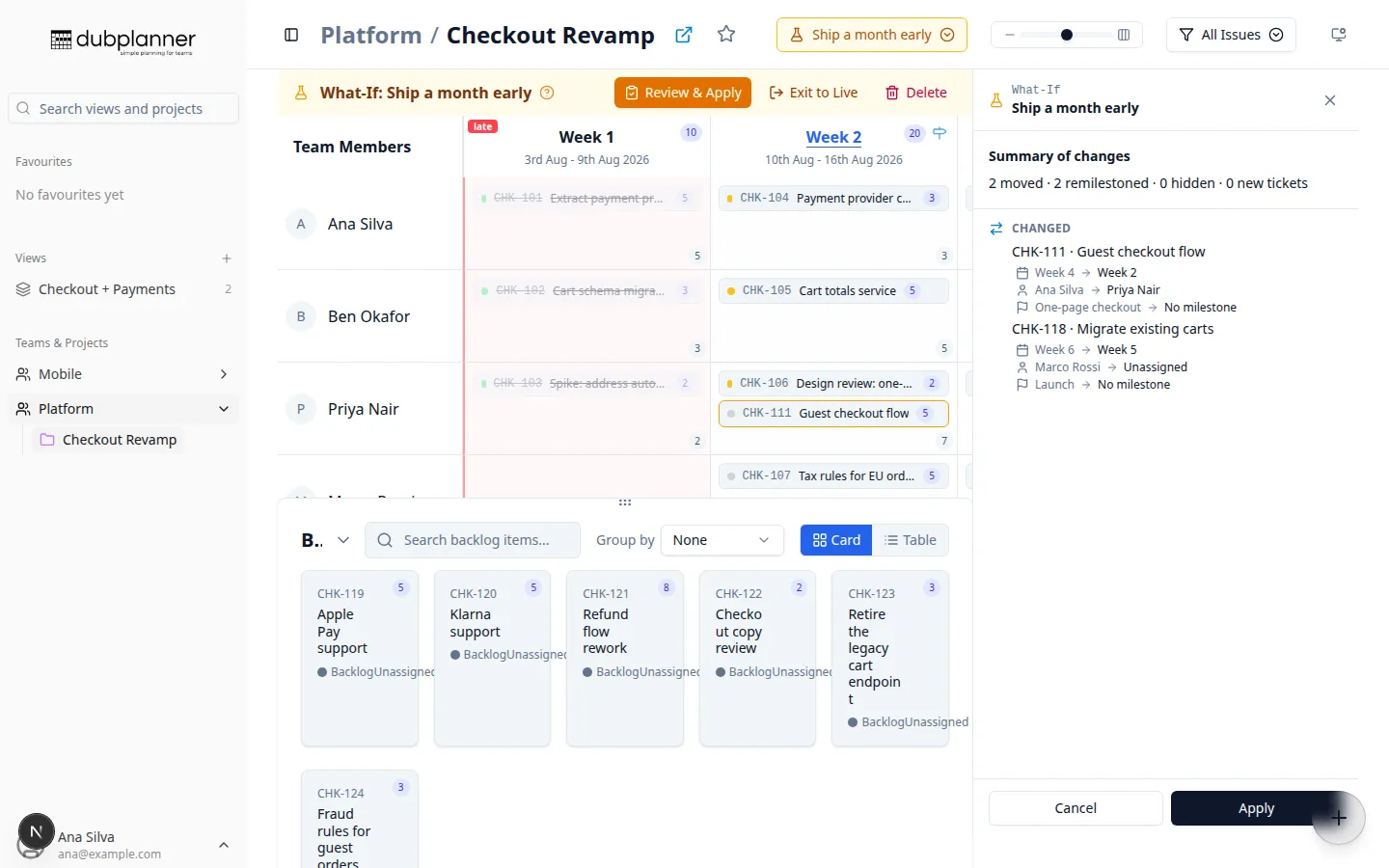
Press Apply and confirm, and DubPlanner writes the whole set to Linear in one go: moves, reassignments, milestone changes, and real issues created from your placeholders. You are dropped back to Live with the plan you designed.
Cancel closes the panel and changes nothing.
Working on a scenario together
Section titled “Working on a scenario together”Teammates viewing the same What-If see your changes in real time, the same as they do on the live plan. A scenario is a shared workspace, not a private draft — which is the point when the whole team is on the call.
Deleting a scenario
Section titled “Deleting a scenario”Delete in the banner removes the scenario and everything in it, after a confirmation. The live plan is untouched — that is the guarantee the whole feature rests on.