Ticket Details
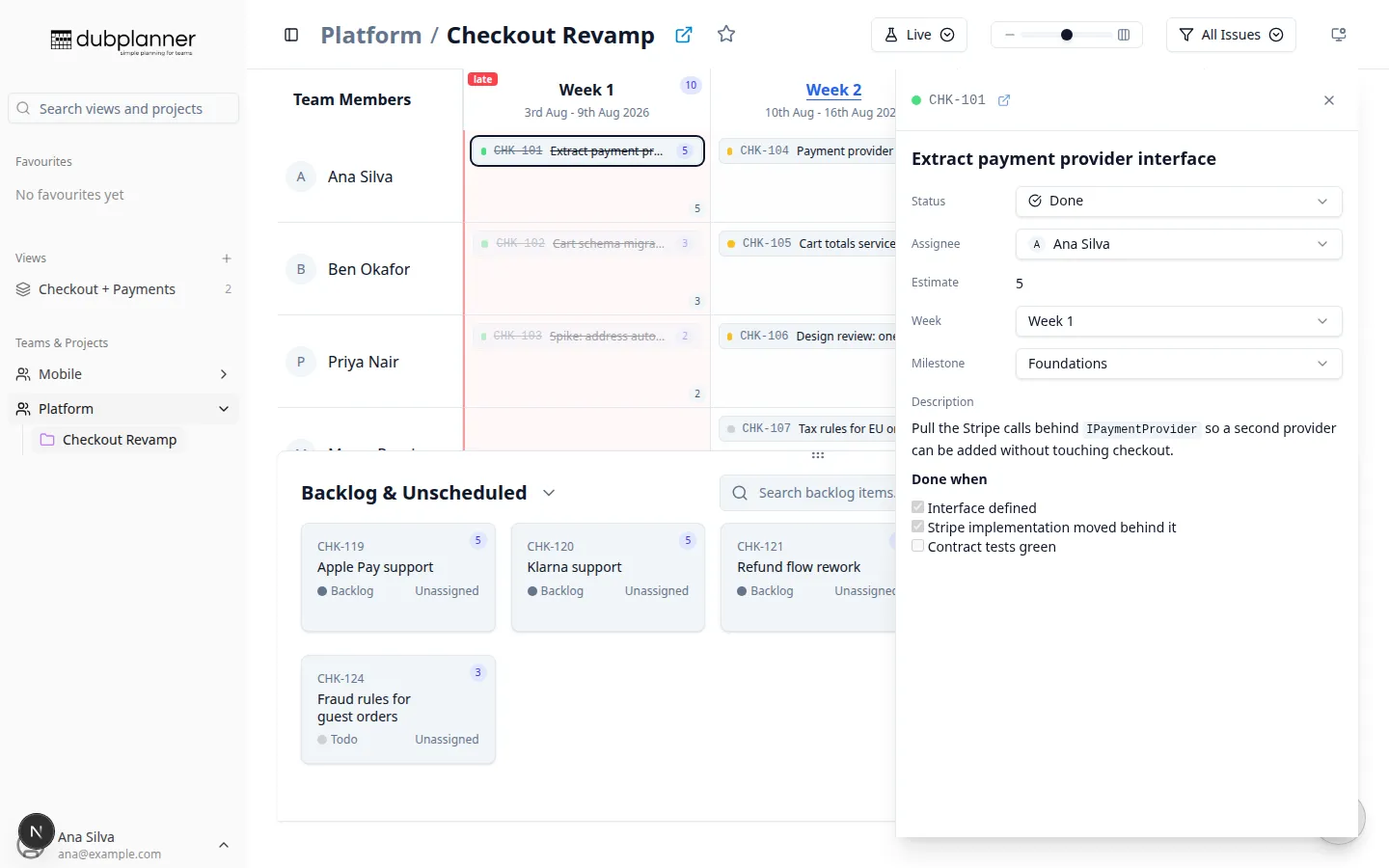
Click any ticket, in the grid or in the backlog’s table view, and its details open in a panel on the right.
What the panel shows
Section titled “What the panel shows”- Identifier and title
- Status, Assignee, Week, Milestone, Parent and Estimate
- Description, rendered as full Markdown
- A link out to the issue in Linear
In a Custom View the panel also names the grid column the ticket sits in, which is not the same as its own project’s week number when projects start at different times.
Editing from the panel
Section titled “Editing from the panel”Status, assignee and week can be changed directly in the panel. Edits are staged, not live: change what you need, then Save — or Cancel to drop them. If you try to close the panel with unsaved changes, DubPlanner asks first rather than silently discarding your work.
Everything else — title, description, estimate — is edited in Linear; use the link in the panel header.
Markdown in descriptions
Section titled “Markdown in descriptions”Descriptions render properly rather than as raw text, in both the panel and the hover popup:
- links and auto-linked URLs
- bulleted, numbered and task lists (with checkboxes)
- tables, blockquotes and fenced code blocks
- bold, italic, strikethrough and inline code
Panel behaviour
Section titled “Panel behaviour”- Resizable — drag the panel’s left edge; your preferred width is remembered between sessions
- Overlay, not squeeze — the panel sits over the board rather than compressing it, so the backlog underneath keeps its layout
- Close with the ✕ or the
Esckey
Hover details
Section titled “Hover details”Hovering a ticket shows the same information in a popup after about a second’s pause — long enough that sweeping the cursor across the board does not flash popups at you, and any pending popup is cancelled as soon as you move on.
Now that the panel exists, some people prefer no popups at all: turn Hover Details off in the Display options menu. The choice is remembered.
Related pages
Section titled “Related pages”- Scheduling work — the right-click menu and drag-and-drop
- Milestones — the milestone side panel